
Guide · Errors
Readable stack traces: upload your source maps
To turn a minified stack trace back into your own files and lines, build with source maps on, upload the .map files to your error tracker after each build, and remove them from what you deploy. It takes one line in your build script.

What a source map is
Maps turn a.js:1:4821 into your line
A source map records which original file, line and column every spot in the bundle came from.One line after every build
Build with maps on, runnpx bugotter sourcemapswith the same release as your script tag.Upload them, don’t ship them
Maps are your source code.--deleteremoves them before deploy; a.mapURL should return 404.
Your production JavaScript isn’t the code you wrote. The bundler joins your files, renames variables to single letters, strips whitespace and often puts the whole thing on one line. That’s good for speed and bad for debugging.
A source map is a JSON file that records how to get back. For every position in the bundled file, it says which original file, line and column it came from, and often the original name of the function or variable.
The format is standardized (ECMA-426, based on the long-used “version 3” format). The fields that matter:
sources: the original file paths, likewebpack://my-app/./src/cart.ts.mappings: a compact encoding of “this spot in the bundle is that spot in that source”.names: original identifiers.sourcesContent(optional): the original code itself, so a tool can show the line without access to your repo.
Bundles point to their map with a comment on the last line, //# sourceMappingURL=main.js.map. Browser DevTools follow it. Error trackers don’t need to: you upload the map to them directly.
- BuildThe bundler writes
page-3f2a.jsand its.map. - Upload with a releaseThe CLI sends each map, tagged
--release, then deletes it. - Error arrives minifiedThe browser reports
natpage.js:1:4821. - Mapped to your lineBugOtter applies the map:
summary.tsx:57, with the code.
Why minified traces are useless
Here’s a real-shaped production error without maps:
TypeError: Cannot read properties of undefined (reading 'price')
    at n (https://yourapp.com/_next/static/chunks/app/checkout/page-3f2a1b9c0d1e2f3a.js:1:4821)
    at o (https://yourapp.com/_next/static/chunks/4bd1b696-9a8f7e6d5c4b3a21.js:1:12034)
    at https://yourapp.com/_next/static/chunks/4bd1b696-9a8f7e6d5c4b3a21.js:1:98211
Line 1, column 4,821, in a function called n. That tells you nothing you can search for. With the map applied, the same error reads:
TypeError: Cannot read properties of undefined (reading 'price')
    at OrderSummary (src/checkout/summary.tsx:57:31)
        const total = plan.price * seats;
    at renderWithHooks (node_modules/react-dom/…)
Now it’s obvious: plan is undefined at line 57.
This matters even more if a coding agent does the fixing. With a mapped stack, it opens one file at one line. Without it, it greps for minified names and guesses. (See letting Claude Code fix production errors.)
Maps also make grouping better. Errors are grouped by type and the top frames of your own code; when those frames are real file names instead of shifting chunk hashes, the same bug stays one issue across deploys.
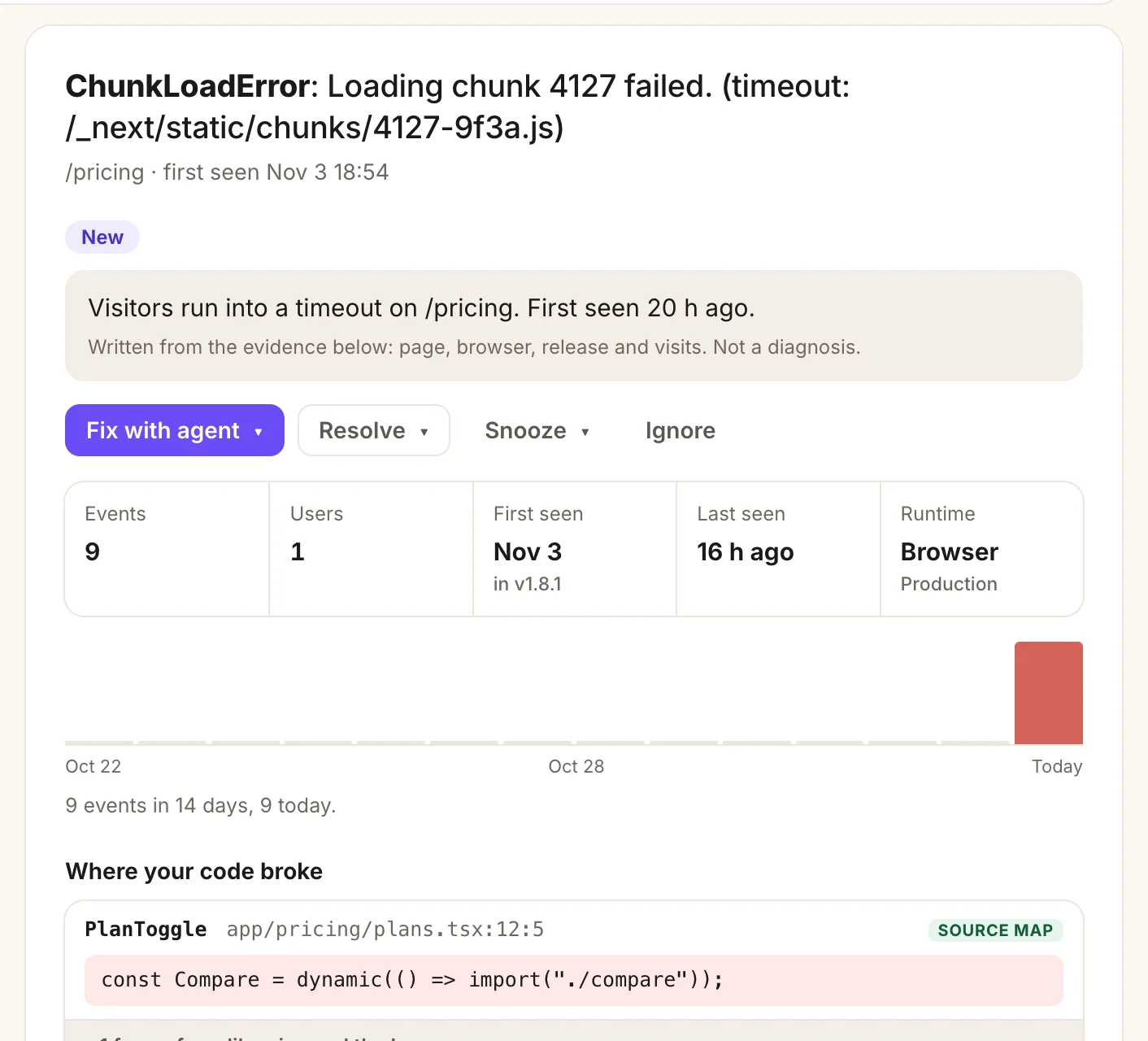
- First seen in v1.8.1: the release ties the error to the right map.
- Where your code broke: your component, file and line, with the line of code.
- SOURCE MAP means this frame was mapped from an uploaded map.
Upload after every build
The pattern is the same for every tracker: build with maps, upload them tagged with a release, delete them from the output, deploy. With BugOtter’s CLI (Node 18+, no dependencies):
Get the keys
Run
npx bugotter initonce in the project (it writesBUGOTTER_PROJECTandBUGOTTER_KEYto.env.local), or copy both from the app’s page. In CI, set both as environment variables.BUGOTTER_KEYis the secret upload key, not the public DSN key in your bundle; uploads with the DSN key are refused.Turn on source maps in your build
Next.js:
productionBrowserSourceMaps: true. Vite:build.sourcemap: true(or"hidden"). Details below.Upload right after the build
terminal or build script npx bugotter sourcemaps .next --release $(git rev-parse --short HEAD) --delete # Vite: npx bugotter sourcemaps dist --release $(git rev-parse --short HEAD) --deleteTag errors with the same release
Add the release to the script tag so browser errors carry it, and to
Sentry.initif you send errors from an SDK:script tag <script defer src="https://bugotter.com/bo.js" data-app="YOUR_APP_ID" data-release="c0ffee1"></script>
What the CLI does
- Finds every
.js.map(also.cjs.mapand.mjs.map) in the folder. With no folder given, it uses.nextif it exists, elsedist. - Works out the path the browser loads each bundle from. For
.nextit looks in.next/staticand prefixes/_next/; for anything else it prefixes/. Change it with--url-prefix. - Picks the release:
--releaseif you pass one, else the first 12 characters ofVERCEL_GIT_COMMIT_SHA,GITHUB_SHA,CF_PAGES_COMMIT_SHAorCOMMIT_REF(Netlify), elsegit rev-parse --short HEAD. - Uploads each map gzipped, prints what failed, and with
--deleteremoves each map once it’s uploaded. It exits with an error if any upload failed, so CI notices.
On CI, let the CLI pick the release and set the script tag from the same variable, so they can’t drift. On Vercel that’s VERCEL_GIT_COMMIT_SHA cut to 12 characters.
Prefer raw HTTP? Each map is one request: POST /api/<project>/sourcemaps?file=/assets/index-3f2a1b9c.js&release=… with authorization: Bearer <upload key> and the map as the body (gzip welcome).
Next.js
Next.js doesn’t build browser source maps for production by default, to avoid leaking your source. Turn them on with one flag. Its docs note two things:
- It can make
next buildslower and use more memory. - The maps are written next to the JavaScript files and served automatically when requested. That’s why you delete them after upload.
import type { NextConfig } from "next";

const config: NextConfig = {
  productionBrowserSourceMaps: true,
};
export default config;
Then chain the upload onto the build, so the maps are gone before the output is deployed.
On Vercel, set this as the build command (or as the build script in package.json) and add BUGOTTER_PROJECT and BUGOTTER_KEY to the project’s environment variables:
{
  "scripts": {
    "build": "next build && npx bugotter sourcemaps .next --delete"
  }
}
And give the script tag the same release, so browser errors find the right maps:
const release = process.env.NEXT_PUBLIC_VERCEL_GIT_COMMIT_SHA?.slice(0, 12);

<script defer src="https://bugotter.com/bo.js" data-app="YOUR_APP_ID" data-release={release} />
If you serve assets from a CDN with assetPrefix, the browser loads bundles from a different path than /_next/. Pass the path part with --url-prefix so frames and maps line up.
Vite
Vite’s build.sourcemap is off by default. It takes three values:
truewrites separate.mapfiles."inline"puts the map inside the JavaScript as a data URI."hidden"writes separate files without thesourceMappingURLcomment in the bundles.
Use "hidden". Browsers won’t go looking for the maps, and you still get files to upload. Never use "inline" in production: it ships your whole source to every visitor, and there’s no separate file to upload.
import { defineConfig } from "vite";

export default defineConfig({
  build: { sourcemap: "hidden" }, // output goes to dist/ by default
});{
"scripts": {
"build": "vite build && npx bugotter sourcemaps dist --delete"
}
}The CLI maps dist/assets/index-3f2a1b9c.js to /assets/index-3f2a1b9c.js. If your app lives under a sub-path (Vite’s base, say /app/), pass --url-prefix /app/.
The same works for Astro, SvelteKit or anything else that outputs plain bundles: point the CLI at the folder the browser files end up in.
Next.js and Vite options checked against nextjs.org/docs (productionBrowserSourceMaps) and vite.dev/config/build-options on Nov 4, 2026.
Keep your maps private
A public source map is your source code, comments and all, for anyone who opens DevTools. Sometimes that’s fine (open-source apps).
Usually it isn’t: it exposes unreleased features, internal API routes, and sometimes keys someone hard-coded “just for now”.
- Delete after upload.
--deleteremoves each map once it’s safely uploaded. Run it in the same build step, before deploy. - Hide the pointer. Vite’s
"hidden"drops thesourceMappingURLcomment. Belt and braces with deleting. - On Vercel, there’s also Protected Source Maps. It serves
.mapfiles only to people who can already access the deployment and returns 404 to everyone else. Vercel’s docs say it’s on by default for new projects; existing projects opt in. Deleting maps after upload still works with or without it. - Check. After a deploy, open a bundle URL with
.mapadded. You want a 404.
Uploading is safe in the other direction too: BugOtter only accepts uploads with the app’s secret upload key, and the mapped lines it shows are scrubbed like other error data.
404
What a deployed .map URL should return.
After a deploy, open a bundle URL with .map added. Anything else means your source is public.
When maps don’t apply
You uploaded maps and the stack still says a.js:1:4821. Work down this list:
- Did the upload run? The CLI stops with “No .js.map files in …” when the build didn’t make any. Check the flag is on and you pointed at the right folder. An “Unknown project or upload key” error means you used the DSN key or the wrong project.
- Is the error newer than the upload? Maps are applied when an error arrives. Errors captured before the upload keep their minified frames; trigger a new one to test.
- Do the paths match? The map is stored under the path the browser loads the bundle from. A CDN,
assetPrefixor Vitebasechanges that path; fix it with--url-prefix. Run with--verboseto see each path uploaded and compare it with a frame’s URL. - Is it the right build? BugOtter strips hex content hashes (the kind Next.js uses) from file names before matching, so
page-3f2a1b9c0d1e2f3a.jsand its map meet aspage.js. That makes the release important: without a matching release, the newest map for that file is used, which is wrong for a visitor still running last week’s bundle. Setdata-releaseand upload with the same--release. - Is the map complete? A map without
sourcesContentstill gives file and line, but no line of code. Some setups strip it; turn it back on if you want the code shown. - Inline maps? The CLI uploads
.mapfiles only. Switch to separate files.
Questions
Do I need a release name?
It helps but isn’t required. BugOtter uses a map from the same release first, and otherwise the newest map uploaded for that file. A release name makes old and new builds of the same file impossible to mix up.
Is uploading my source maps a security risk?
They contain your original source, so treat them like code. Upload them to your error tracker with a secret key and remove them from what you deploy. BugOtter refuses uploads made with the public DSN key; only the app’s secret upload key works.
Does it work with Turbopack?
Yes. BugOtter cleans webpack:// and turbopack:/// prefixes from source paths, so frames read src/cart.ts either way.
How many maps are kept?
The newest 300 per app, up to 25 MB each after unzipping. Older ones are removed as new ones arrive, which is plenty for recent releases.
What about server errors?
The CLI uploads the maps of your browser bundles (for Next.js, everything under .next/static). Server errors sent by a Sentry SDK are grouped and shown as they arrive.
Stack traces in your own files and lines.
14 days of everything, no card needed. Plans from $10 a month, billed yearly.