
Errors, source maps and release health
BugOtter's error tracking catches what breaks in your apps, groups it into issues, and tells you which deploy started it. Browser errors come with the analytics script. For servers, any official Sentry SDK works with your app's DSN. Add source maps when you want stacks that point at your own files.
In 30 seconds
browser errors are already on if the script is in. For your server, copy the DSN from the app → Setup → Catch errors on your server into your Sentry SDK.
Browser errors
The script captures uncaught browser errors and failed promises, with privacy-safe breadcrumbs (page paths and failed request paths only). At most 10 errors are sent per page load, and the same error once. Turn it off with data-errors="off" on the script tag. You don't need the Sentry browser SDK.
Server errors
Point any official Sentry SDK (Node, Python, Go, Ruby, PHP and more) at your app's DSN. No Sentry account needed.
- Open the app → Setup → Catch errors on your server, and copy the DSN. After
npx bugotter initit's also in.env.localasBUGOTTER_DSN. - Install the Sentry SDK for your stack and set it up like this:
import * as Sentry from "@sentry/node"; // or @sentry/nextjs, sentry-sdk (Python), …
Sentry.init({
  dsn: process.env.BUGOTTER_DSN,
  tracesSampleRate: 0,
  // SDK v11+. On v10 or older use sendDefaultPii: false instead.
  dataCollection: { userInfo: false, cookies: false, httpBodies: [] },
});- Add
BUGOTTER_DSNto your host's production environment and deploy. The step turns green when the first server error arrives.
No server code? Click No server code? Skip this on that step.
The Errors page
Errors in the top bar lists errors from every app. The app's Errors tab shows the same for one app.
- Tabs: For review, All open, Snoozed, Resolved and Ignored. Open lists cover 30 days; Resolved and Ignored cover 90.
- For review: new errors (first seen in the last 7 days), ones that came back, and ones rising. They wait here until you open them.
- Rising: at least 10 events in the last 24 hours and three times the error's usual daily count. Only for errors older than two days.
- Search and filters: search by type, message or file. Filters narrow by app, environment (Production, Preview, Development), release, browser and operating system.
- Sort: Impact (paying customers and checkouts first), Newest, or Most events.
Errors that started during an outage are folded into the incident, so one outage isn't twenty issues.

- The latest deploy check sits on top.
- For review holds new, returning and rising errors.
- Search and filters narrows by app, environment, release, browser and system.
One error
Click an error to open it. You get a short summary written from the evidence (page, browser, release, visits), who hit it, the stack trace (frames from source maps are marked), where it happens (pages, browsers, releases, environments, systems), the last steps before it, and a timeline. The buttons:
- Resolve → In the next deploy: BugOtter watches real traffic after your next deploy, then marks it verified. Or Now: it reopens if it happens again.
- Snooze → Until it gets worse, For the next 1,000 events, 1 hour, 1 day or 1 week. It comes back on its own.
- Ignore: it stays here quietly and never alerts, even if it happens again. Stop ignoring undoes it.
- Fix with agent → Open in Cursor, a command for Claude Code or Codex, or Copy full prompt for any agent. Agents connected over MCP load the evidence themselves and post the PR link back here.
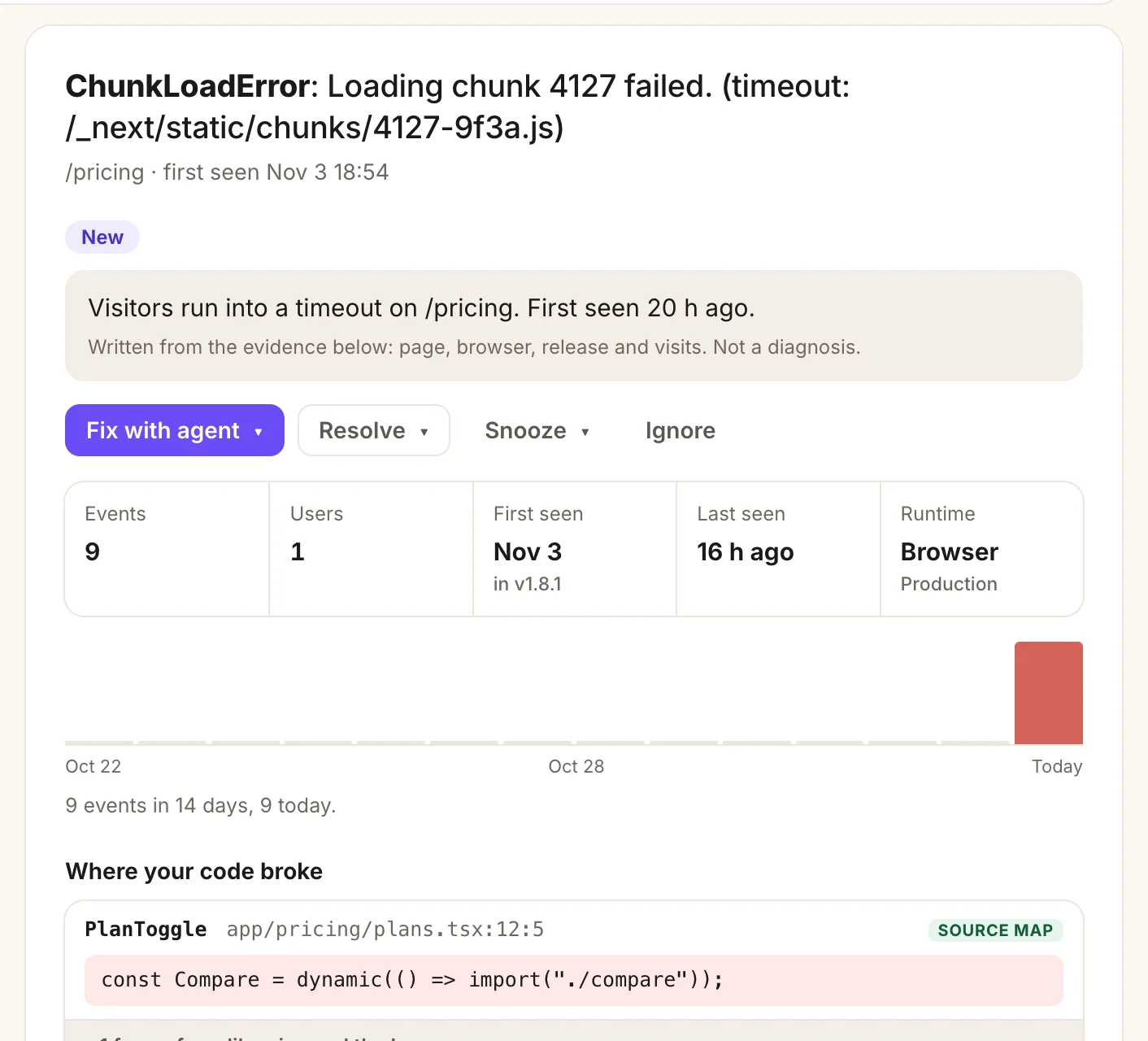
- A summary written from the evidence. Not a diagnosis.
- Fix with agent, Resolve, Snooze and Ignore.
- Events, users, first seen (and in which release), last seen, runtime.
- Where your code broke: frames from source maps are marked SOURCE MAP.
Grouping and privacy
Errors are grouped by type and the top lines of your own code. Each group is one issue; it reopens on its own if it comes back after you resolved it, and you get an alert that it's back. A Sentry fingerprint overrides the grouping.
Before anything is stored, emails, API keys, tokens and JWTs are replaced with [redacted]. Users are counted by a salted hash, never by IP. Breadcrumbs keep page changes and requests only, not clicks or console logs.
Noise filtered out
Errors that aren't yours to fix are dropped before they become issues: browser extensions, bots and headless browsers, third-party scripts, harmless browser warnings, very old browsers, and floods of new errors in one day. They never alert and never count toward your plan. The Errors page says how many were filtered this week; click Review to see them.
Source maps
Turn minified stacks (a.js:1:4821) into your files and lines (src/cart.ts:42), with the line of code.
- Turn on source maps in your production build. Next.js:
productionBrowserSourceMaps: true. Vite:build.sourcemap: true. - After each build, upload them. The exact command, with your keys, is on the app → Setup → Catch errors on your server:
npx bugotter sourcemaps .next --release $(git rev-parse --short HEAD) --delete- Add
data-release="…"to the script tag with the same release, so maps match exactly. - Put the command in your build script, so it runs every time.
The source maps guide covers more build tools.
Release health
Did the latest release make things worse? BugOtter compares the latest deploy (or, without deploys, the latest release seen on errors) with the one before: errors per hour, error groups first seen since it, and resolved errors that came back. It shows on the Errors page and each app's Errors tab, with a deploy check for each recent deploy.
Release health counts errors, not sessions, so there's no crash-free percentage yet.
Limits
- Your plan's monthly error pool is shared by all apps. See Plans and limits.
- Up to 1,000 events per app per hour, and up to 200 new error groups per app per day. Above that, events are dropped, so one bad loop can't use up your pool.
- Events up to 1 MB. Source maps up to 25 MB each; the newest 300 per app are kept.
Common questions
My SDK gets "Invalid key" (403) or "Unknown project" (404)
The DSN is wrong or incomplete. Copy it again from the app's Setup tab: it looks like https://KEY@host/NUMBER. The upload key is not a DSN.
The SDK sends, but nothing shows up
BugOtter answers OK even when it drops an event, so your app never slows down. Events are dropped when the app is asleep, after the trial ends, when it's over your plan's app limit, after two months over your error pool, or when the error is noise (see the noise filtered chip). Also check the Sentry environment: use the Filters menu to see Preview and Development too.
Browser errors don't show
The script must be on the page, and the visitor's browser must not send Do Not Track. Pages under data-exclude send nothing. Errors from scripts on other domains arrive as "Script error." with no detail, and BugOtter files them under noise. Serve your own scripts from your own domain.
Source maps don't apply
- Wrong path: the map must be uploaded under the path the browser loads. Next.js is
/_next/, Vite is/. Anything else needs--url-prefix. - Uploaded too late: maps only apply to errors that arrive after the upload.
- Release mismatch: use the same value for
--releaseanddata-release. Without an exact match, the newest map for that file is used, which can point at the wrong lines. - Server stacks: the CLI uploads browser bundles. Server stack traces usually already show your file names.
"Unknown project or upload key"
You used the DSN key instead of the upload key, or the wrong project number. Copy the command from the app's Setup tab, which has both filled in.
See alsoDeploysYour agent (MCP)CLI