
Add your apps and watch uptime
An app in BugOtter is a URL you've shipped. Add it and uptime, SSL and domain checks start at once, with nothing to install. Read this when you add your first apps, or when you want to watch more than the home page: an API, a checkout, a nightly job.
In 30 seconds
click Add apps in the top bar, paste your URL, click Start watching. That's it: the first check runs while you watch.
Add an app
- Click Add apps in the top bar, or open Add apps.
- Paste a URL, or a whole list (up to 30 at once). Each one is checked as you add it, so you see "Up · 212 ms" or what's wrong before you save.
- Click Start watching.
The next screen offers Copy setup prompt: paste it into your coding agent and it adds the script, error tracking and deploy markers for you.
You can also ask your agent to add an app over MCP, if you gave it write access.
Import from Vercel, Netlify or Cloudflare
Lots of apps? Import them all at once. Projects with their own domain are ticked for you.
- Vercel (Import from Vercel): open vercel.com/account/tokens and create a token. Set the scope to your account (or the team your projects are in). Paste it in Vercel token, click Find my projects, pick your projects (up to 50 at a time). The token is stored encrypted and used only to read projects and deploys, so every production deploy is tracked from then on. Disconnect Vercel is on the same page.
- Netlify (Import from Netlify): open app.netlify.com/user/applications → New access token, with a short expiry. Paste it, click Find my sites, then Watch N apps.
- Cloudflare (Import from Cloudflare): open dash.cloudflare.com/profile/api-tokens → Create token → Custom, with Account · Cloudflare Pages · Read and Account · Workers Scripts · Read. Paste it, click Find my sites, then Watch N apps. Pages and Workers on custom domains both work.
Netlify and Cloudflare tokens are used once to list your sites, then forgotten. For deploy markers from those hosts, add the deploy webhook from each app's page.
The app page
Click any app to open its page. The header has Check now (runs a check right away) and Fix with agent. The tabs:
- Overview: uptime, traffic, revenue and errors at a glance, and What happened in the last 7 days (deploys, outages, new errors, payments).
- Traffic: this app's analytics.
- Revenue: what this app earns, once a product is linked to it.
- Uptime: the last 30 days, response times per region, incidents and recent checks.
- Errors: this app's errors, with release health.
- Setup: the steps to wire it up, each with Show me how and a Copy prompt for this step button. The tab shows how many are left.
- Settings: what counts as up, extra checks, heartbeats, the status page, maintenance, ad blockers, the revenue badge, sleep and delete.
Traffic, Revenue and Errors disappear when you turn that module off.
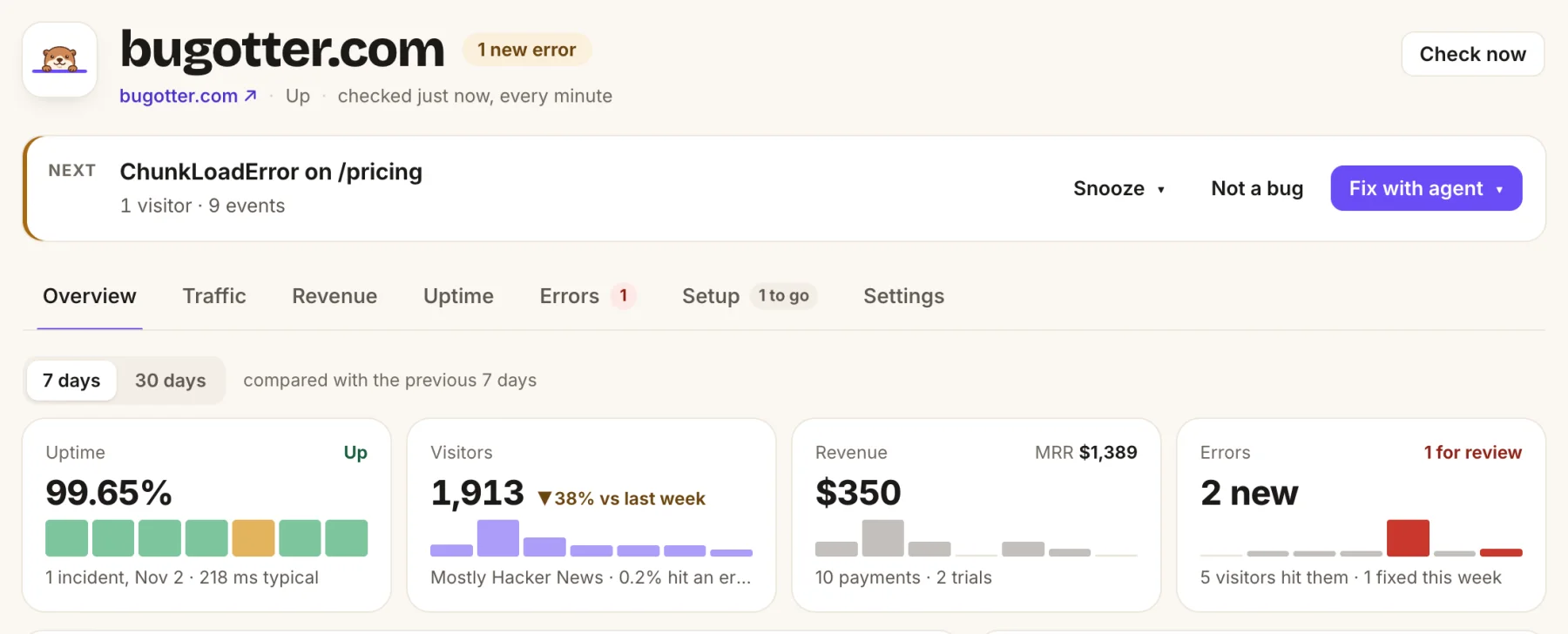
- Check now runs a check right away.
- The most urgent thing for this app, with Fix with agent next to it.
- The tabs. A number shows what's waiting, like steps left on Setup.
- 7 or 30 days, compared with the period before.
How uptime is checked
We check each app every 5 minutes on Starter, every minute on Builder and Pro, from US East, Europe and US West, and only call it down when two regions agree. When a check fails, each region tries once more after 3 seconds. One region having a bad minute doesn't wake you up.
- Down: an issue opens when two regions confirm, and closes when the app answers again. If deploy tracking is on, it says which deploy it started after.
- Slow: two responses in a row slower than 4 seconds open a "responding slowly" issue. It closes once the app answers in under 2 seconds. Slow shows in Issues, but doesn't send an alert.
- SSL: certificates are checked every 6 hours. You're warned 14 days before one expires, and again, as critical, at 3 days.
- Domain: registration is checked daily (every 6 hours until we know its expiry date). You're warned 30 days ahead, critical at 7.
If your script saw real visitors in the last few minutes, BugOtter waits one more round before calling the app down. A page that answers with the wrong content doesn't wait.
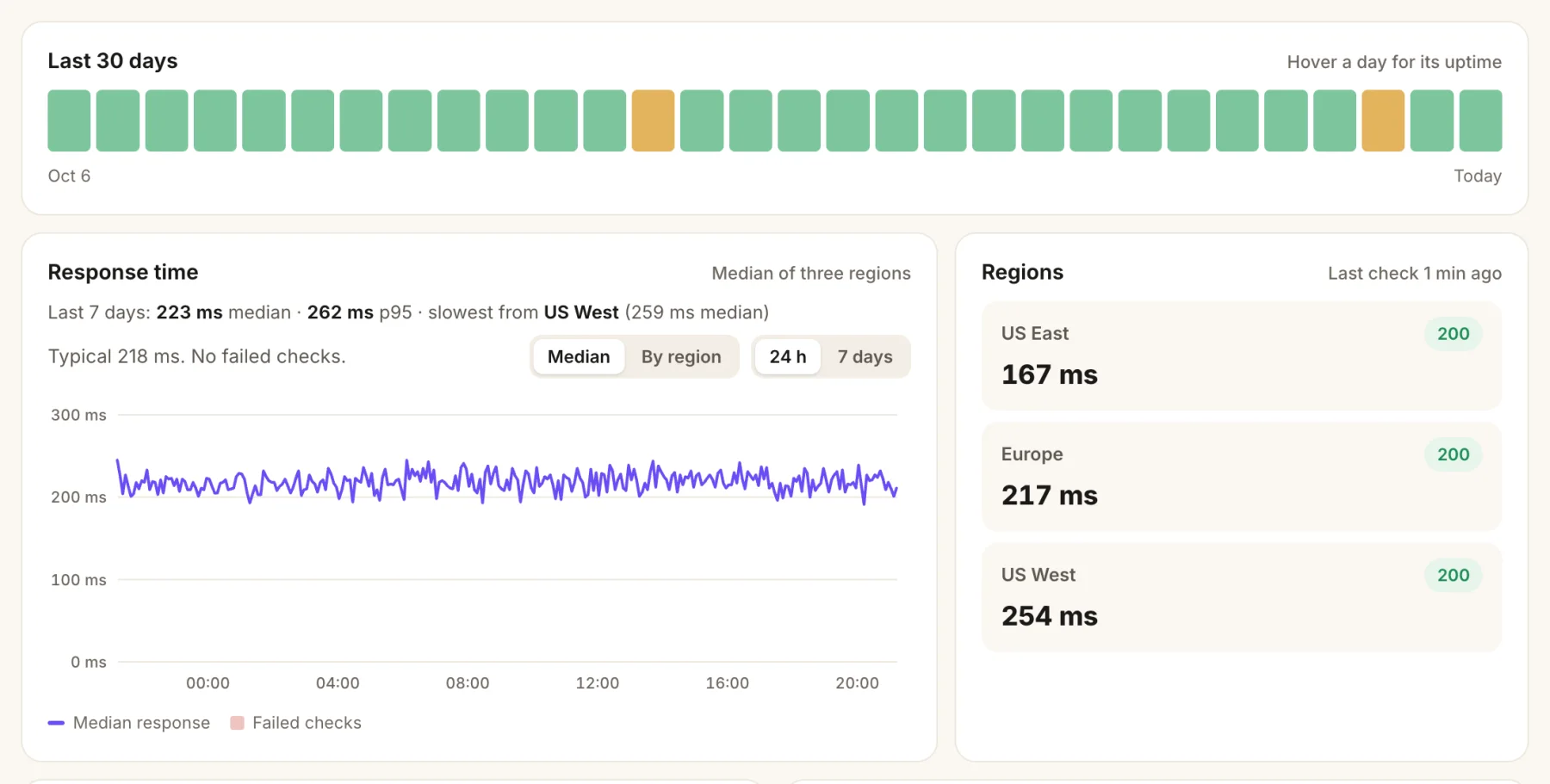
- One bar per day. Amber means some checks failed that day.
- Response time, the median of the three regions.
- The last check from each region, with its status code.
What counts as up
By default an app is up when it answers with any 2xx or 3xx status (following up to 5 redirects). To be stricter, open the app → Settings → What counts as up:
- Status code: one exact code, like 200.
- Page must contain: text from one line of the page, such as your app's name.
- JSON field and Should be: a path like
status,data.okorchecks[0].state, and the value it must have (empty means it just has to exist).
Click Save. The next check uses it, within a minute. When a rule fails while the server still answers, the alert says the app "loads, but not the right page", not that it's down.
Extra checks
Your home page being up doesn't mean checkout works. Add extra checks for an API, a checkout or a health endpoint: 3 on Starter, 10 on Builder and Pro per app. Open the app → Settings → Extra checks and heartbeats.
- Give it a Name, like "Checkout API".
- Pick a Method: GET, HEAD, or POST with a Body (up to 10 KB) and Content type.
- Enter the URL: a full URL, or a path like
/api/health. - Optional: + Add headers, for example an auth header (up to 10). They're stored encrypted and shown masked.
- Optional: the same rules as above (status code, text, JSON field).
- Save. You see at once whether it passes right now.
On the status page, a failing extra check shows as a partial outage. Untick Run this check to pause one without deleting it.
Cron heartbeats
A backup, sync or email job that silently stops never shows up in uptime. Give each job a heartbeat: its own URL, which the job calls when it finishes. If the call doesn't come on schedule (plus a grace time), an issue opens.
- Open the app → Settings → Extra checks and heartbeats → Add heartbeat.
- Pick the schedule: Every… (5 minutes, an hour, a day, a week, or Custom…) or Cron. Cron expressions are in UTC; the next run is shown so you can check it.
- Pick a Grace time, from 1 minute to 12 hours (30 minutes by default).
- Copy the snippet for crontab, GitHub Actions or JavaScript into your job.
# Ping when the job succeeds:
0 3 * * * /path/to/job.sh && curl -fsS -m 10 https://bugotter.com/api/hb/YOUR_TOKEN- Any method: GET, POST or HEAD all work. The answer is empty, so
curl -fsSstays quiet in cron mail. - Run time: call
/startwhen the job begins, to see how long it takes and to catch a job that never finishes. - Failures: call
/fail, or the exit code (/0means success,/1to/255mean failed), when it ends.
Each heartbeat shows as On time, Late, Failed, Running, Didn't finish or Waiting for first ping. A run that ends far quicker than usual is flagged Too fast: a job that ends that fast usually did nothing. Up to 25 heartbeats per app.
Maintenance windows
Planned downtime without false alarms. Open the app → Settings → Maintenance → Schedule maintenance.
- Starts: a date and time, in your computer's time, up to 90 days ahead.
- Lasts: from 15 minutes to 24 hours.
- Note: optional, up to 200 characters. It shows on your status page.
- Click Schedule.
During a window, checks still run and are kept, but failures don't open incidents, send alerts or lower uptime. SSL, domain and slow checks wait until it's over. Cancel a planned window, or End now if you finish early. Up to 20 planned windows per app.
Sleeping apps
Put an app you're not working on to sleep: open the app → Settings → Sleep or stop watching → turn on Sleeping. Or ask your agent.
- It's still checked on its usual schedule, and you still hear if it goes down.
- It's free and unlimited, and it doesn't count toward your plan.
- While it sleeps, its traffic and errors aren't recorded.
Turn the switch off to wake it, any time.
Stop watching an app
Open the app → Settings → Stop watching. Its checks stop, and its history, issues and keys are deleted. This can't be undone. To pause an app instead, put it to sleep.
Common questions
"Private addresses can't be monitored"
BugOtter checks from the internet, so it can only watch public addresses. localhost, 192.168.… and other private networks can't be reached. Deploy the app, or use its public URL.
"Domain doesn't resolve"
The domain has no DNS record yet, or there's a typo. Check it opens in your browser, then add it again.
"No response after 10s", "Connection refused", "Invalid SSL certificate" or "HTTP 503"
That's what the app actually answered. Open it in a browser to see. If it works for you, your host may block traffic from cloud servers; allow BugOtter's checks (they say BugOtter in the user agent; see the BugOtter bot).
Some of my apps say paused
You have more awake apps than your plan includes (3 apps on Starter, 10 apps on Builder, 30 apps on Pro). The newest ones pause and the oldest keep working. Put a quiet app to sleep or move up a plan. See Plans and limits.
My heartbeat URL answers "Unknown heartbeat"
The token in the URL is wrong, or the heartbeat was deleted. Copy the URL again from Settings → Extra checks and heartbeats.
My cron job ran but the heartbeat says late
Cron schedules are in UTC. Check the "next run" shown under the schedule matches when your job really runs, or add more grace time. Two pings less than 5 seconds apart count as one.
Can I rename an app?
Not yet. The name comes from the URL when you add it.
Can I check a page behind a login?
Yes: add an extra check with an auth header, or point it at a health endpoint that needs no login.
See alsoTraffic and analyticsErrors and source mapsStatus pages and badges